
Please click the image for detail on specific functions.
*Notification Actions
About Notification Actions
- The Notification actions Allow and Ignore enable GearVox to filter incoming e-mail. Ignored messages will never be announced or read by GearVox. Allowed messages will always be read/announced if your notification settings are set to speak messages. Allow always overrides Ignore actions. There is no practical limit to the number and combination of filters that can be added. _Please note that GearVox never deletes mail from your Inbox. You can always access ALL your e-mail messages via your normal e-mail software.
Hints and Examples follow the clickable screen image below.
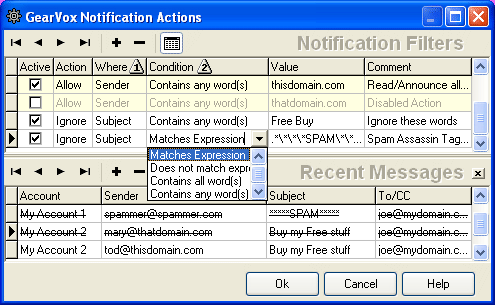
Hints Predefined filters are available by right clicking for menu in the action editor grid.
The Recent Messages grids shows your recently received messages and allows testing new notification actions. You may directly edit the Recent Messages grid to test your new filters. Changes to the Recent Messages grid will NOT be saved upon closing the Actions Editor.
The right click menu in the Recent Messages grid has a menu item to quickly add an Ignore action to block a sender from whom you have received a e-mail.
Click column titles to sort. Action, Where and Condition are sorted based on execution priority, not alphabetically. For example, the action “Allow” will override the “Ignore” action.
Conditions Matches/Does not Match Expression use Perl style regular expressions for pattern matching.
Ex: Autoreply|out of office
The “|” is equivalent to “OR”. This filter will trigger if GearVox finds either “Autoreply” or the phrase “out of office”
Ex: .*[ ][ ][ ][ ][ ][ ][ ][ ][ ][ ][ ][ ][ ][ ][ ][ ][ ][ ][ ][ ]
The preceding will filter based on strings that have too many spaces.
Contains all words (all words must appear for the filter to take effect) and Contains any word(s) (any word that appears will trigger the filter) conditions use space delimited word lists, no regular expressions are evaluated.
Ex: quick easy free
Ex: myemail1@mydomain.com myemail2@mydomain.com
*Examples
Read e-mail only from friends and family
- Filter (Ignore) all e-mail except from the e-mail addresses that you specify.
Right Click in the Filters Grid and pick New Filter: Block All Senders
Right Click again in the Filters Grid and pick New Filter: Default
Change Action to Allow and add e-mail addresses in the Value column separated by spaces. Additional Allow filters can be added rather than specifying all allowed e-mail addresses on one line.
Simple block list Filter all mail from certain senders
Set Action to Ignore,
Where to Sender and
_Contains any word(s) _to _spammer@somedomain.com anotherspammer@somedomain.com
_Add e-mail addresses in separated by spaces. Multiple Ignore Actions can be used if needed.
Bulk Mail Filter Filter all mail not explicitly to your e-mail address:
Set Action to Ignore_,
Where to To/CC and
Does not match expression to youremail1@yourdomain.com
Add e-mail addresses separated by the “|” symbol for each address that you want GearVox to NOT ignore. i.e. “your_email1@yourdomain.com|your_email2@yourdomain.com” This prevents mail on the BCC line and bulk list e-mail from being announced by GearVox. If you have bulk mail you want to receive, create an Allow action for that sender or e-mail list.
Copyright 1999-2013,  GearheadForHire, LLC
Site design by GearheadForHire, LLC | v2.3.0